Why Is My Computer So Slow? 7 Things You Can Check
Are you thinking Why is my computer so slow?
Maybe Windows takes ages to start, programs take longer to open, or you click on something and have to wait for what seems like forever. It can be very frustrating, particularly when the computer used to work perfectly well.
The good news is that a slow computer doesn’t necessarily mean you need to buy a new one.
There are several things you can check before deciding that your computer has reached the end of its useful life.
1. Try restarting your computer
If you normally leave your computer switched on or simply put it to sleep, try giving it a proper restart.
Over time, programs and background processes can use up memory and other resources. A restart closes these processes and can clear temporary problems.
It sounds simple, but you’d be surprised how often a restart makes a noticeable difference to a computer that has been running for a long time.
2. Check how much storage space you have
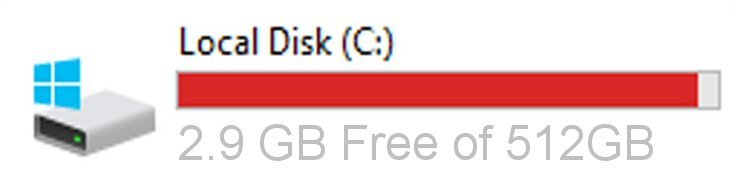
A computer with very little free storage space can start to struggle.
Your Windows computer needs some free space for temporary files, updates and other everyday tasks. If your drive is almost full, it’s worth checking what is taking up the space.
Your Downloads folder is a good place to start. You may also have old videos, photographs, documents or installation files that you no longer need.
Just be careful what you delete. If you’re not sure what a file or folder is for, leave it alone rather than risking deleting something important.
3. Check what’s starting with Windows
If your computer takes a long time to start, too many programs could be loading automatically.
Software such as printers, cloud storage, messaging applications and other programs can sometimes add themselves to the Windows startup list.
You can see which programs are starting with Windows by opening Task Manager and selecting the Startup apps section.
Some programs need to start automatically, while others don’t. If you don’t recognise something, check what it does before disabling it.
4. Make sure Windows is up to date
Windows updates aren’t just about adding new features. They also contain security fixes and can resolve problems with the operating system.
Go to:
Settings > Windows Update
and check whether any updates are waiting to be installed.
If Windows has been downloading or installing a large update in the background, this can sometimes make your computer appear slower temporarily.
Once the updates have finished, restart the computer and see whether things have improved.
5. Check for unwanted software
If your computer has suddenly become slow, rather than gradually slowing down over several years, it’s worth considering whether unwanted software could be responsible.
Warning signs can include:
- Lots of unwanted pop-ups
- Your web browser opening strange pages
- Unwanted browser extensions
- Programs appearing that you don’t remember installing
- Your computer becoming unusually slow
- Security warnings that don’t look genuine
Be particularly careful with pop-ups telling you that your computer has been infected and giving you a telephone number to call.
Don’t telephone the number simply because a message appears on your screen.
These warnings can be designed to frighten you into paying for unnecessary support.
6. Your computer may simply need an upgrade
If your computer is several years old, the problem may not be a virus or a Windows problem at all.
Technology moves on, and newer versions of Windows and modern software can require more from your computer.
However, that doesn’t automatically mean you need to replace it.
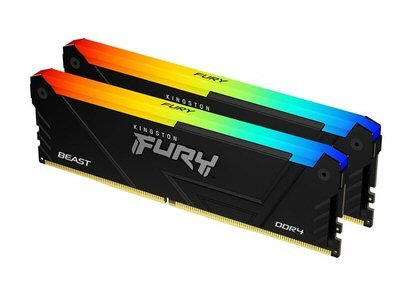
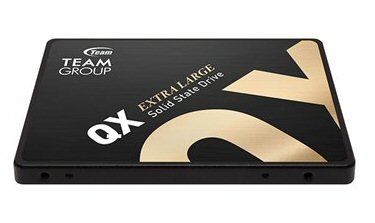
Depending on the computer, an upgrade such as replacing an old hard drive with an SSD or increasing the amount of RAM can make a significant difference to everyday performance.
Whether an upgrade is worthwhile depends on the age and specification of the computer and what you use it for.
7. Don’t ignore freezing, crashing or unusual noises
A computer that is becoming progressively slower, freezing regularly or crashing could have an underlying hardware problem.
For example, an ageing hard drive can start to fail before it stops working completely.
If you hear unusual clicking or grinding noises from a traditional mechanical hard drive, or you’re experiencing repeated crashes and error messages, make sure you have a current backup of your important files.
It’s much better to investigate a potential problem before the computer stops working completely.
Do you need a new computer?
Not necessarily.
If your computer has become slow, it’s worth finding out why before spending money on a replacement.
Sometimes the solution is as simple as removing unwanted software or freeing up some storage space. In other cases, the computer may benefit from an upgrade or require a repair.
And if the computer really has reached the end of its useful life, having it checked can still help you decide what sort of replacement you actually need.
You don’t necessarily need the most expensive computer available.
Need help with a slow computer in Kent?
If your PC or laptop has become slow, keeps freezing, won’t start properly or is giving you other problems, Bit’z & PC’s can help.
We provide computer support and repairs for customers in Biddenden, Tenterden and across Kent, including help with hardware, software, Windows problems and general computer issues.
Before replacing your computer, it can be worth having it checked to see whether the problem can be fixed or whether an upgrade would be a better option.
Bit’z & PC’s – Computer Support in Kent
Call us today on Biddenden: 01580 291619
If you’re not sure what’s wrong with your computer, give us a call and we can discuss the problem with you.